How to Join a Hytale Server
Find Hytale servers to join and learn how to connect. Three methods: Direct Connect, Add Server, and Share Codes for multiplayer.
Looking for Hytale servers to join? Once you’ve found one, connecting to Hytale multiplayer servers is quick and easy. This guide covers how to join for PvP, exploration, building, or just hanging out with friends.
There are three ways to join a Hytale server: Direct Connect for quick joins, Add Server to save your favorites, and Share Codes to hop into a friend’s world.
Quick Start
If you just want to get playing, here’s the fastest route:
- Find a server on HytaleSL and copy the IP address
- Launch Hytale and click Servers from the main menu
- Click Direct Connect, paste the IP, and hit Connect
That’s it - you’re in! Now let’s break down each method in detail.
Direct Connect
Direct Connect is the fastest way to join a server. It’s perfect when you’re trying out a new community or just want to hop in without any setup.
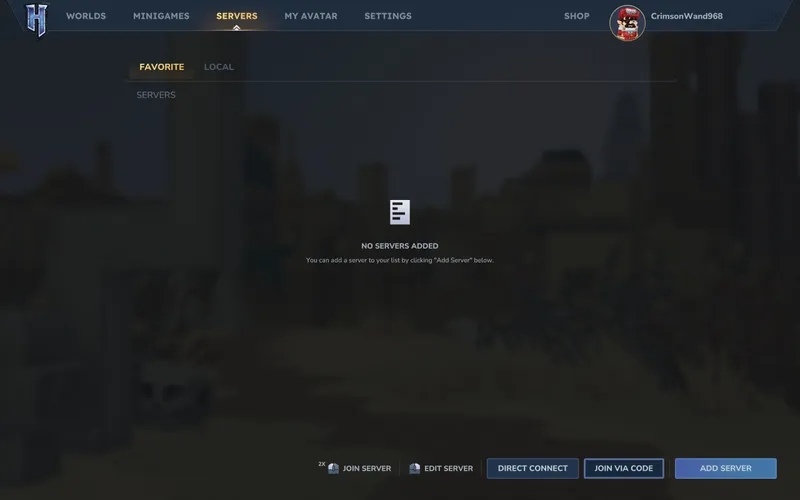
- Launch Hytale and click Servers on the main menu
- Click Direct Connect in the bottom right corner
- Enter the server address (e.g.,
play.example.com:5520) - Click Connect
- Enter the server password if prompted
One thing to remember: the default Hytale port is 5520, and you’ll need to include it in the address. If a server doesn’t specify a port, just add :5520 to the end.
Add Server
Found a server you love? Save it to your favorites so you can jump back in anytime without hunting for the address again.
- Launch Hytale and click Servers on the main menu
- Click Add Server in the bottom right corner
- Enter a name for the server (anything you want - this is just for you)
- Enter the server address (e.g.,
play.example.com:5520) - Click Add Server to save it
Once saved, the server appears in your Favorites list. Just double-click to connect whenever you’re ready to play. This is the way to go for servers you’ll be returning to regularly.
Share Codes
Want to play with friends without the hassle of setting up a dedicated server? Share Codes make it simple. When someone opens their singleplayer world to multiplayer, Hytale generates a code that others can use to join directly.
- Get the Share Code from your friend
- Launch Hytale and click Servers on the main menu
- Click Join Via Code in the bottom right corner
- Paste the Share Code
- Enter the password if your friend set one
- Click Join
Keep in mind that your friend needs to stay online for you to play. When they log off, you’ll be disconnected too. For a world that’s always available, you’ll want a dedicated server instead.

Troubleshooting
Running into issues? Here are the most common fixes:
Can’t connect? Double-check the IP and port for typos. Make sure you included the port number - it’s easy to forget.
Connection timed out? The server might be full, temporarily offline, or located in a distant region. Give it another shot in a few minutes.
Version mismatch? Update Hytale to the latest version. Your client needs to match the server’s version exactly.
What’s Next?
Now that you know how to connect, it’s time to find your perfect server. Check out Hytale Server Types Explained to learn about the different kinds of communities out there, or browse the server list to see what’s online right now.
See you in-game!